Reader
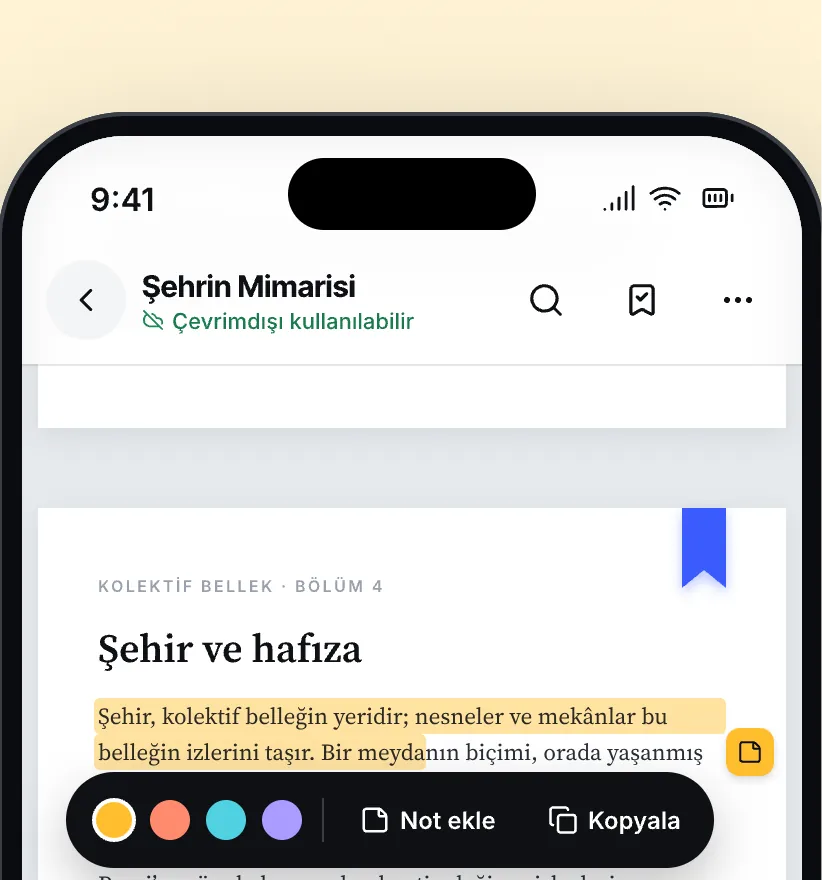
Read and study
Select text; highlight in four colors, add notes, bookmark pages. Pick up where you left off; light, sepia and dark reading themes.
Search. Read. Discover.
Your PDF, EPUB and TXT files, scanned documents and images line up on shelves like a real bookcase. Highlight while you read, take notes and find what you need in seconds.
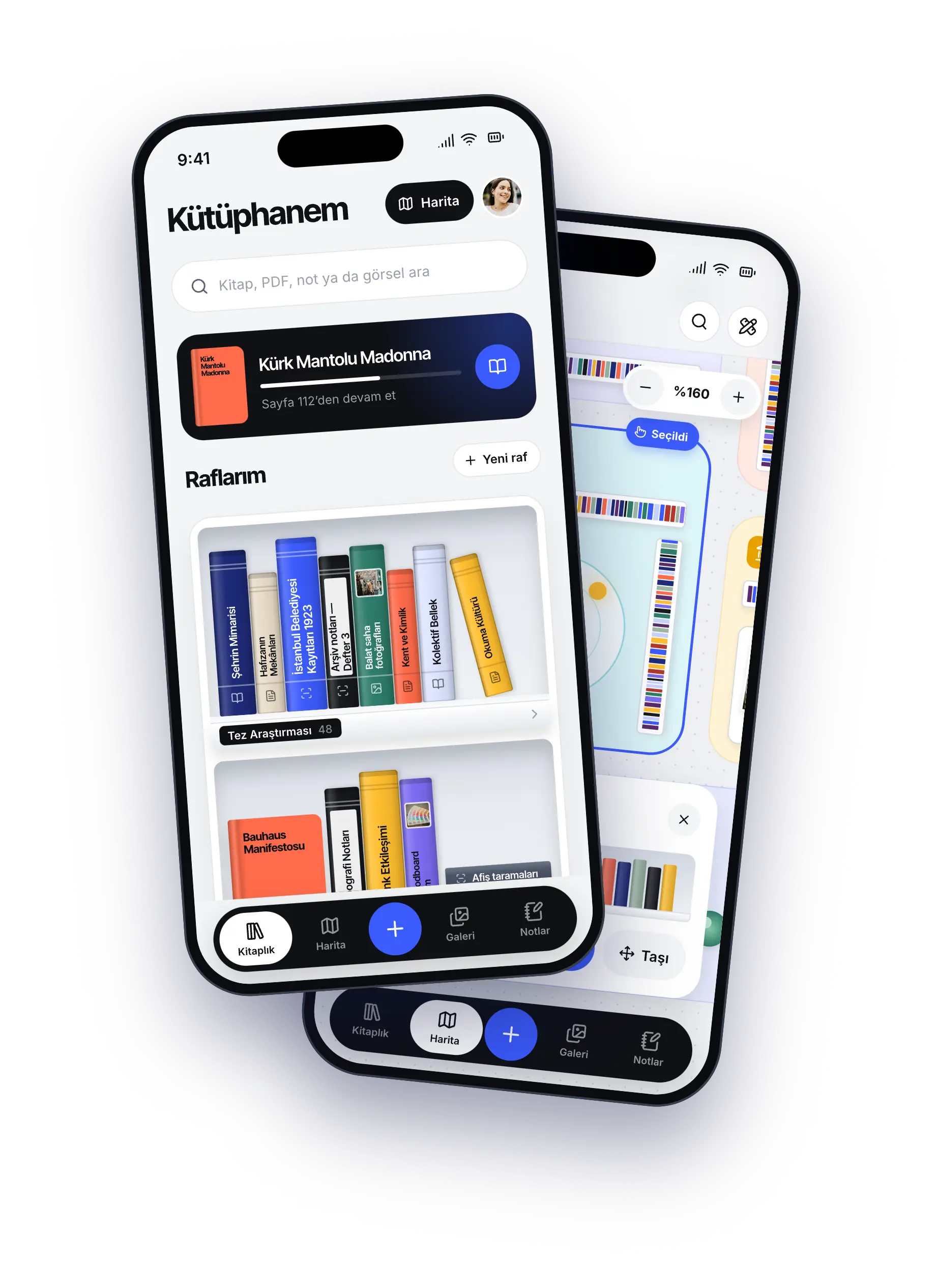
Books, PDF and EPUB files, scanned documents and images that get lost in scattered folders — Cordoba puts them on shelves like a real bookcase.
Reader
Select text; highlight in four colors, add notes, bookmark pages. Pick up where you left off; light, sepia and dark reading themes.
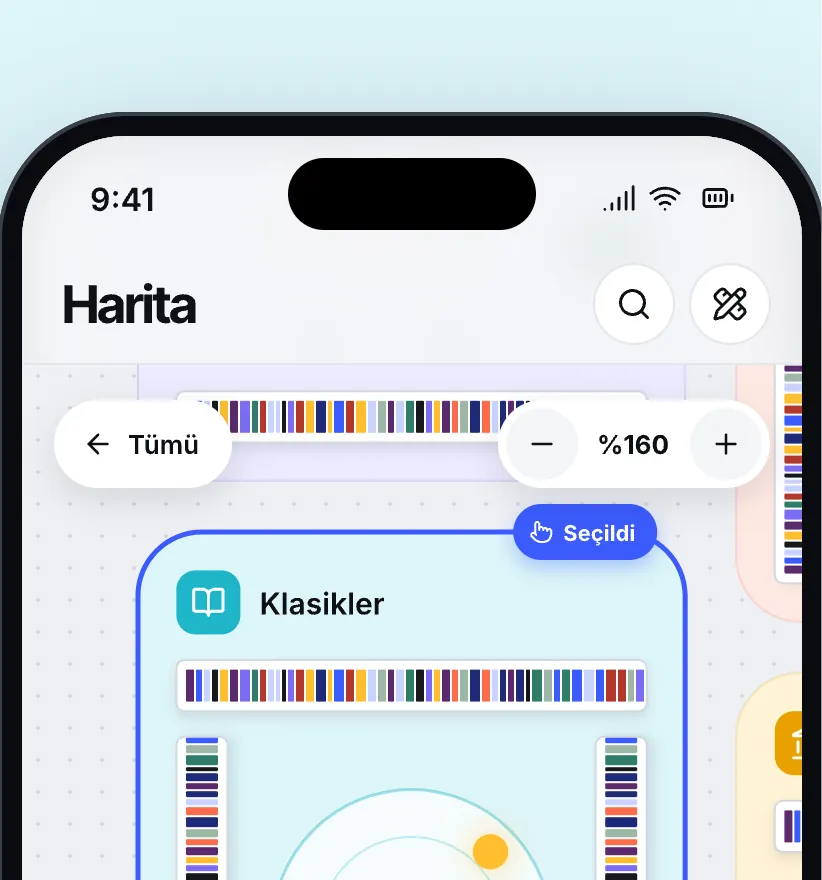
Map
Lay out your shelves on a bird’s-eye floor plan; see on the map which shelf a book is on.
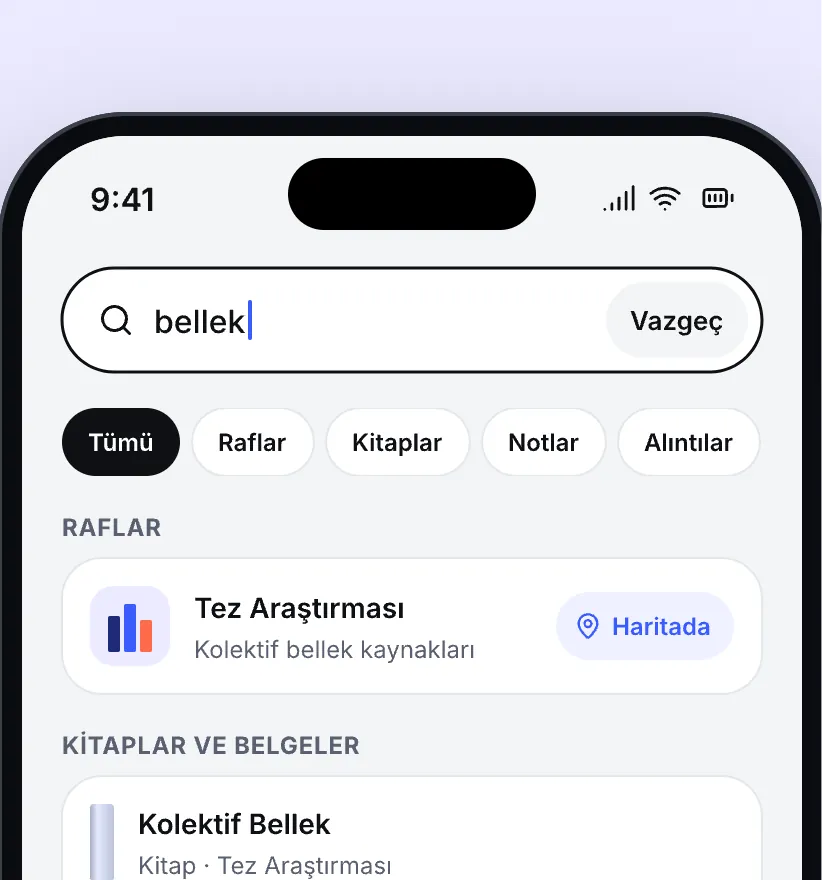
Search
Search book titles, your notes and the text inside your books. All your highlights and notes on one screen, grouped by book.
No account, no servers of ours. Nothing you add ever reaches us.
Read the Privacy PolicyYour books, notes, highlights, reading progress and settings are kept in the app’s own storage.
We don’t add any analytics or tracking of our own. Your library is never used for ads.
Back up your library as a ZIP wherever you like and restore it anytime.
Deleted items wait for 30 days; you can restore them during that time.
Having a problem, or have a suggestion? Write to us:
cordobaapphelp@gmail.comIf you include your phone or tablet model and the app version (Settings › About), we can help faster. If you write from the app with Settings › Help › “Write to us”, the version is added to the subject automatically.
PDF, EPUB and TXT files; documents you scan with the camera; images from your photo library. You can also add a PDF from a link.
Only on your device. Cordoba has no account and no servers; nothing you add ever reaches us.
On your old device, make a backup with Settings › Backup › “Back up as ZIP” and transfer the file to your new device. On the new device, choose that file with Settings › Backup › “Restore from backup”. Your shelves, files, notes and bookmarks all come along.
Yes. Deleted items wait in Settings › Trash for 30 days; you can restore them during that time.
On Android, the text you select is translated on your device; the first time you use a language, its language pack is downloaded once. On iPhone and iPad, translation opens the text in Google Translate.
Subscribe to Cordoba Premium, monthly or yearly, from Settings › Cordoba Premium. While your subscription is active, the app shows no ads at all, and you can have as many shelves, books, cover colors and cover images as you like. The free version holds up to 5 shelves and 25 books, with 5 cover colors and cover images on up to 5 books.
Nothing is deleted. Shelves, books, colors and cover images beyond the free limits stay as they are and you can keep reading and editing them; you just can’t add new ones until you’re back under the limit or subscribe again.
Subscriptions are managed by Apple or Google. On iPhone and iPad: Settings › your name › Subscriptions. On Android: Google Play › your profile › Payments & subscriptions › Subscriptions. If you cancel, ads and limits stay off until the end of the period you’ve paid for.
Open Settings › Restore purchases while signed in with the same Apple ID or Google account you subscribed with. Your subscription works on every device that uses that account.
The free version shows ads from Google. On iPhone and iPad, Apple requires apps to ask before using the advertising identifier for personalized ads; in the EU, the UK and Switzerland, Google’s consent form asks for your consent. You can decline — the app works the same, but the ads may be less relevant. You can change your choice later in Settings › Ad privacy choices or in your device settings.
Settings › Help › “Show the intro again”.